


If your laptop is starting to feel like it’s crawling through molasses, you’re not alone. The good news? You don’t need to buy a brand new machine just to get decent performance again. With a few smart tweaks and upgrades, you can breathe new life into your old laptop, Here are five tried and true ways to give your old device a second wind.
1. Upgrade to an SSD (Solid State Drive)
Still using a spinning hard drive (HDD)? Upgrading to an SSD is hands down the biggest performance boost you can give an aging laptop. SSDs are much faster, more reliable, and draw less power than traditional drives.
Why it helps: Faster boot times, quicker app launches, and snappier overall performance.
What to buy: Look for a 2.5″ SATA SSD if your laptop doesn’t support NVMe drives.
Bonus: Cloning your old drive to the SSD is easier than you think with a USB to SATA adapter.

2. Add More RAM (Memory)

If your laptop has 4GB of RAM or less, it might be struggling to keep up with modern multitasking. Adding more memory can drastically improve performance, especially when browsing with multiple tabs or using productivity apps.
How to check: Use Task Manager (Windows) or Activity Monitor (Mac) to see if you’re maxing out your RAM.
How to upgrade: Look up your laptop model to find compatible RAM. Most older laptops use DDR3 or DDR4 SO-DIMM sticks.
3. Clean It Up—Physically and Digitally
Dust can buildup inside your laptop and cause it to overheat, leading to throttling and shorter lifespan. And digital clutter can bog down even the best machines.
Physically: Use a can of compressed air to clean the keyboard, fans, and vents.
Digitally: Uninstall unused programs, clear browser cache, and run disk cleanup tools.
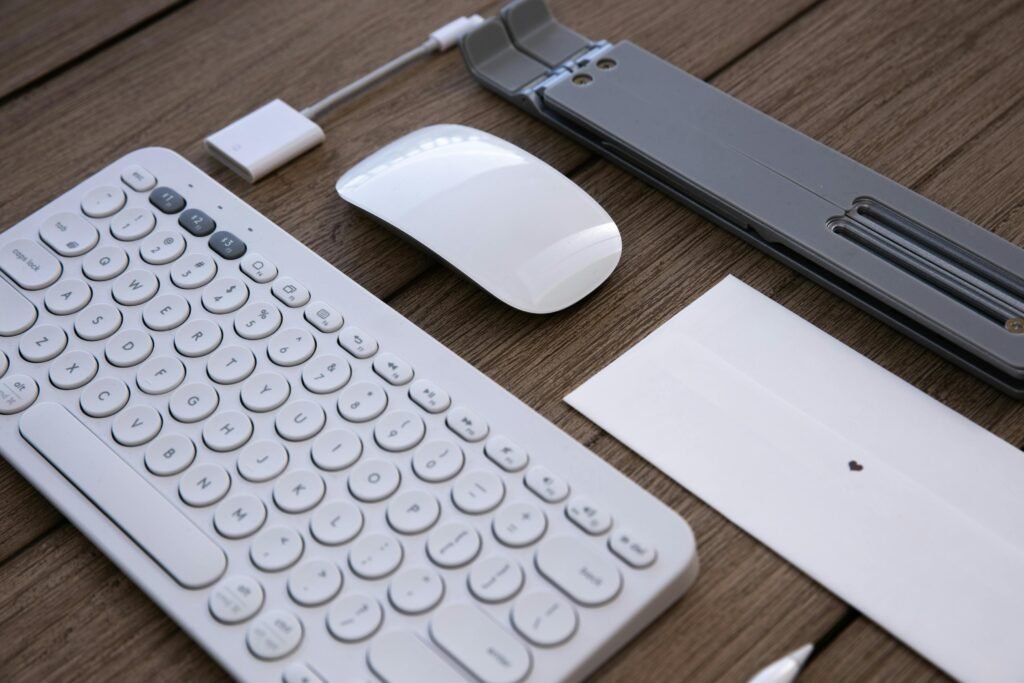
4. Use External Accessories to Expand Functionality
Sometimes it’s not the laptop that’s outdated it might be the experience. A few budget friendly accessories that can make your setup feel modern and more comfortable.
Mouse and Keyboard: A wireless combo improves ergonomics and typing comfort.
Laptop Stand: Improves posture and airflow.
External Monitor: Gives you more screen real estate for productivity.
5. Reinstall or Switch Operating Systems
If all else fails and your laptop is still sluggish, a fresh install of your OS (or switching to a lightweight OS) can work wonders.
Reinstall Windows/macOS: A clean slate can remove years of digital gunk.
Try Linux: Distributions like Linux Mint or Ubuntu are free and run great on older hardware.
Use a bootable USB: Install your OS using a USB flash drive.
Don’t give up on your old laptop just yet. With a few simple upgrades and tweaks, you can extend its life by years and save yourself a lot of money in the process. Whether you’re upgrading storage, memory, or just giving it a good cleaning, each step above brings you closer to a laptop that feels fresh again and ready to work (or play) just as hard as you do.
here’s a list of my recommended products from amazon that might save you time searching.
- SSD – Samsung 990 PRO SSD NVMe M.2 PCIe Gen4
- RAM – Crucial 32GB DDR4 RAM Kit (2x16GB)
- Wireless mouse & keyboard – Logitech MK345 Wireless Keyboard and Mouse Combo with Palm Rest
- Laptop stand – LORYERGO Laptop Stand for Desk
Got a favorite upgrade or budget-friendly tech tip? Share it in the comments below!
As an Amazon Associate, I earn from qualifying purchases .
this helps support the site at no extra cost to you.